Complete tasks straight from Slack
Published on: September 27, 2026, by: João Alves
When we launched Slack reminders, the message told you it was your turn. That was it. You'd read the notification, switch to RotaHog, find the rotation, find the turn, and click "Done." A lot of tab-switching for a five-second action.
We fixed that. Slack reminders now come with action buttons.
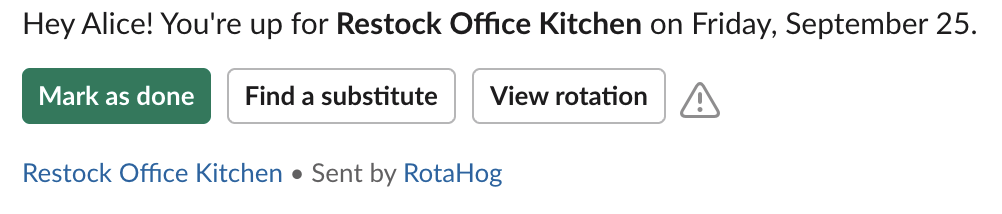
One click from Slack to done
When you get a reminder, you'll see up to three buttons right in the message:
- Mark as done opens RotaHog, scrolls straight to your turn, and pops up a confirmation. One click to confirm, and the task is marked complete.
- Find a substitute takes you directly to the substitute form for that turn. Can't make it this week? Hand it off in seconds.
- View rotation opens the full rotation page if you just want to see the schedule.
The buttons are smart about your plan. "Find a substitute" only appears on Team Toolkit and Ops Pro. "Assign backup" is exclusive to Ops Pro. You won't see buttons for features your plan doesn't include.
Confirm with confidence
We also upgraded every confirmation dialog in RotaHog. Instead of the browser's default popup that looks like it's from 2004, you now get a proper modal with context about what you're confirming.
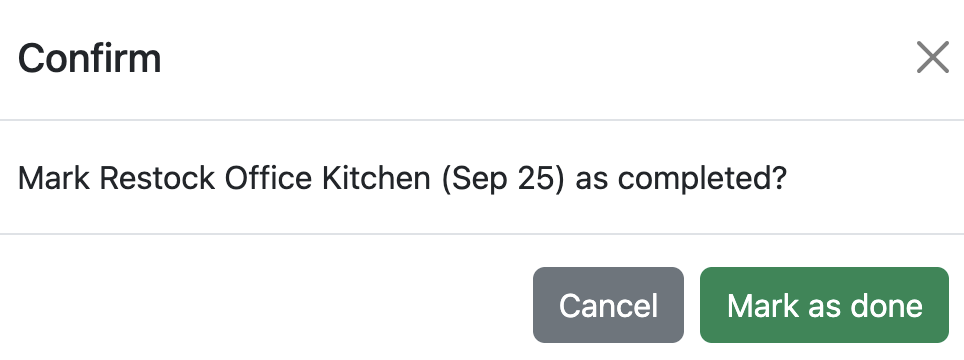
The button label adapts too: green "Mark as done" for completions, red "Yes, cancel" for cancellations. Small thing, but it makes a difference when you're quickly acting on a notification.
Try it
If you already have Slack reminders set up, you'll see the new buttons on your next reminder. If you haven't set up Slack yet, it takes about a minute: create an Incoming Webhook in Slack, paste the URL into your rotation settings, and you're done.
Your team is already in Slack. Now they can act on rotation tasks without leaving it.
Set up Slack reminders